

A recorder is only as reliable as the drive inside it, and a spare desktop drive on the shelf is a tempting replacement. The surveillance hard drive vs regular drive question comes down to how differently the two are used: a desktop drive spends most of its life idle or reading, while a recorder writes video around the clock. This guide explains the workload, rated hours, vibration, firmware and warranty differences, and why a desktop drive that works on day one can still fail early.
What is the difference between a surveillance hard drive and a regular hard drive?
A surveillance drive is specified for continuous, around-the-clock writing from many camera streams, with a higher workload rating, firmware tuned to keep recording and tolerance for vibration in multi-bay recorders. A regular desktop drive is built for lighter, mostly-read use. It may run in a DVR or NVR, but it is not designed for that duty.
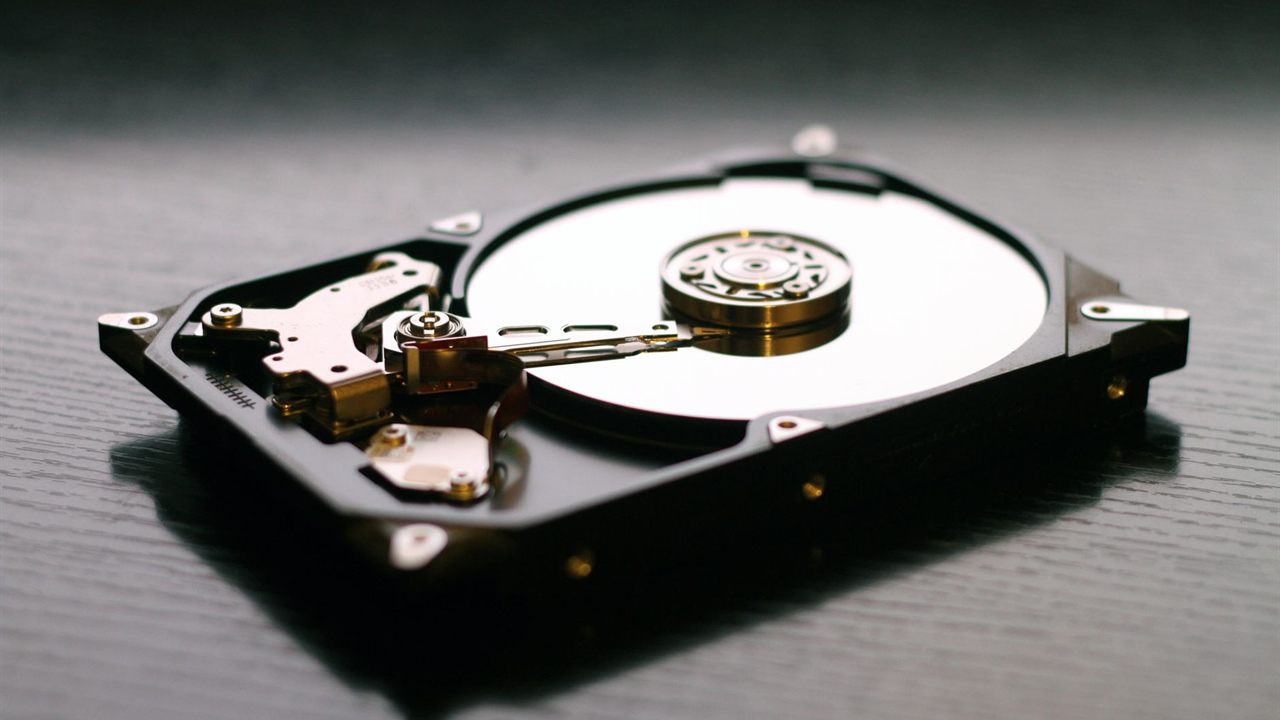
What makes a hard drive a surveillance drive
Physically, both are 3.5 inch spinning drives with the same interface, and most recorders will accept either. The difference is in what the maker specifies and tunes the drive to do: the annual workload it is rated for, the power-on hours it is expected to run, the firmware behaviour when many streams arrive at once and how it copes with neighbouring drives.
That is why a desktop drive often formats and records without complaint at first. The mismatch shows up over months of continuous writing, not in the first test.

Surveillance hard drive vs regular drive compared
Read the drive maker’s datasheet for each figure; the table shows what to compare rather than a number to quote.
| Factor | Surveillance drive | Regular desktop drive |
|---|---|---|
| Intended duty | Continuous recording, every hour of the year | Office or home use with idle time |
| Workload pattern | Mostly writes, many streams at once | Mixed, mostly reads |
| Annual workload rating | Stated for recorder duty | Lower, sized for desktop use |
| Multi-bay vibration | Designed for recorders with several drives | Designed for a single-drive computer |
| Firmware focus | Keep writing video streams | Fast response for one user |
Continuous write workload: a worked example
A workload rating is the volume of data a drive is specified to handle in a year, usually given in terabytes per year on the datasheet. Check how the maker counts it, since some ratings include data read as well as written. To compare, work out what the recorder actually writes.
Assume eight cameras at 4 Mbps each, recording continuously. That is 32 Mbps, or 4 megabytes per second. A day has 86,400 seconds, so the recorder writes about 345,600 megabytes, roughly 0.35 TB a day, and about 126 TB over a year. Playback and exports add reads on top.
Put that beside the workload rating of the drive you are considering. Sizing the capacity itself is a different sum, covered in our guide on how much storage security cameras need.

Rated hours and what MTTF really means
A year has 8,760 hours (24 x 365), and a recorder runs all of them. Datasheets state the power-on hours a drive is specified for, so check that the figure covers round-the-clock use.
Many datasheets also give a mean time to failure (MTTF) in hours. Carnegie Mellon researchers, in a USENIX study of about 100,000 disks in the field, explain that MTTF is the power-on hours per year divided by the annual failure rate. So 8,760 divided by 1,000,000 hours is about 0.88% a year.
The same study found real annual replacement rates typically above 1%, with 2 to 4% common, and rates that kept rising with age. It lists workloads and duty cycles among the operating conditions that affect failures. Treat rated hours as a comparison between drives, not a promise of years in service.

Vibration in multi-bay recorders
A multi-bay recorder holds several drives side by side, each spinning and seeking constantly. Each drive shakes its neighbours, and rotational vibration can push the heads off track, forcing retries that slow writes. A drive designed for a single-bay desktop has no reason to compensate for that.
- Use drives the maker specifies for multi-bay recorders when the unit has more than one bay.
- Fit every drive with its full set of mounting screws, and keep the recorder on a stable shelf or in a rack.
- Keep airflow clear; a full recorder in a closed cabinet runs hot. Our guide to choosing an equipment rack covers ventilation.
Firmware tuned for video streams
Desktop firmware is tuned for one user opening files, and may pause for a long time trying to recover a hard-to-read sector. In a recorder, a long pause while dozens of streams wait can mean dropped frames, and some recorders mark a drive that stops responding as failed.
Surveillance firmware is generally tuned the other way: keep the streams flowing and limit how long it spends on recovery. The number of streams a drive supports is a datasheet figure, so compare it with the camera count. Whether the recorder is a DVR or an NVR does not change this; our DVR vs NVR guide covers how each one records.
Warranty and the supported drive list
Drive warranties are written for the use the drive was designed for, and the maker’s terms decide what is covered. Read the terms before fitting a desktop drive into a recorder that will run it day and night.
The recorder maker’s supported drive list matters as much. It confirms the largest capacity per bay, the drives tested with that firmware and whether mixed sizes are allowed. Drives from the same batch fitted together can also age together, so keep a spare on larger systems.
When a desktop drive fails early
A desktop drive in a recorder seldom fails on day one. The usual pattern is gaps in recordings, playback that stutters, the recorder reporting a drive error or reformatting on its own, and then a drive that stops being detected. By then the footage the customer needs may already be gone.
- Check the recorder’s drive health and event logs on every service visit.
- Replace a drive that logs errors before it stops, not after.
- Put the recorder on a UPS; our guide to sizing a UPS for an equipment rack covers runtime.
Where to find recorders with drives fitted
The Bursma recorders category lists DVRs and network recorders supplied with drives, including a 16 channel network recorder with 6TB and a 16 channel DVR with a 2TB drive. Cameras are in the security cameras category, within the Security - Surveillance - Control division. For pricing and availability, ask your sales representative through the Bursma contact page, or open a Bursma dealer account.
Frequently asked questions
Can I use a regular hard drive in an NVR?
It will usually record, but it is not specified for continuous writing, multi-bay vibration or many streams. Expect a shorter life and check the recorder’s supported drive list first.
Do surveillance hard drives last longer?
In recorder duty they are specified for the workload, so they are better matched to it. No drive comes with a fixed lifespan; field studies show failure rates rise with age, so monitor drive health.
What is a good workload rating for an NVR hard drive?
One above what the recorder writes in a year, plus playback. Convert the total camera bitrate to bytes per second, multiply by the seconds in a year, then compare that with the datasheet rating.
Can I put a surveillance drive in a desktop computer?
It will work as storage, but its firmware is tuned for steady writing rather than quick response to one user, so a desktop drive suits a computer better.